
Manage users
A user is an email address that can sign in to Live Hub. The address must be unique, so there is one user per address, and it is the same user wherever they go, so someone who already works in another Live Hub account does not need a second one to join yours.
Users create themselves: the first person signs up, which creates an account at the same time, as described in Sign up, and everyone after that is invited into an existing account. Whoever signs up is automatically placed in the Administrator, Billing Administrator, and Account Manager groups of the account they created.
Invite a user to the account
Inviting is the same act as granting rights: you add the address to a user group, and Live Hub emails an invitation. What the group allows is what the person can do.
To invite a user:
-
Open Access control (IAM), and select User groups.
-
Click Edit on the group you want the user in.
-
On the Users tab, click Add user.
-
Enter the email address, and then click Add user.
Live Hub sends an invitation with the subject "User invitation". The link in it opens the Live Hub sign-in page: an existing user signs in, and a new user signs up first. In either case they enter your account with the rights of the group you chose.
To give someone wider rights, add them to more than one group. To take access away, see Remove a user or API client.
Only members of the Account Manager group can invite users.
Edit your profile
Your user profile holds your own details, and you edit it in the Live Hub portal.
To edit your user profile:
-
Click your profile icon in the top-right corner of the Live Hub window.
-
Click User profile.
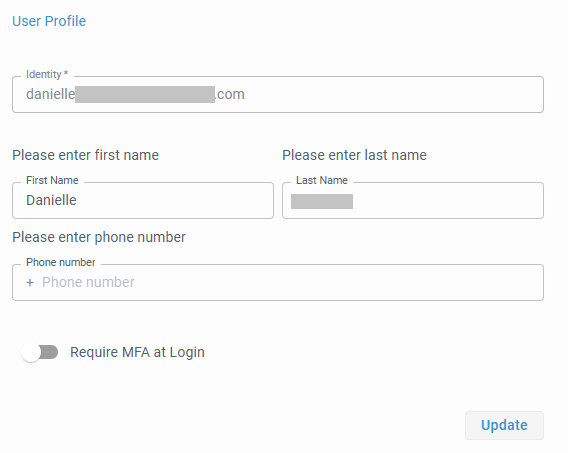
-
Change your details, and then click Update.
Change your password
You change your Live Hub password in Access control (IAM) rather than in the Live Hub portal.
To change your password:
-
Open Access control (IAM).
-
Click your profile icon in the top-right corner.
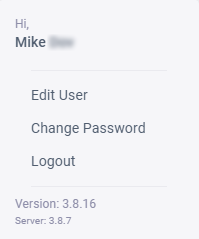
-
Click Change password.
Live Hub returns you to the sign-in page.
-
Click Sign In.
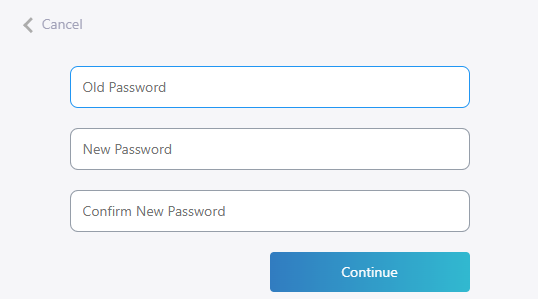
-
Enter your old password, enter the new one twice, and then click Continue.
-
Sign in again with the new password.
Passwords are 8 to 16 characters and must draw on at least three of these four sets: lowercase letters, uppercase letters, digits, and special characters. The special characters allowed are:
@ # $ % ^ & * - _ + = [ ] { } | \ : ' , ? / ` ~ " ( ) ; .